Every 666H account has a Security Center — a dedicated settings section that controls how your account is protected. Most players open it once during registration, skip past it to get to the games, and never return. That’s a mistake, because an incomplete Security Center is the single biggest reason Pakistani players run into withdrawal holds, account lockouts and slow support resolutions later.
This guide walks through the 666H Security Center section by section — what each setting actually does, the order to configure them in, and how to verify your account is fully set up before you deposit anything meaningful.
Ten minutes spent here on registration day saves hours of back-and-forth with support later, and closes the door on the account-takeover methods that circulate in Pakistani gaming groups.
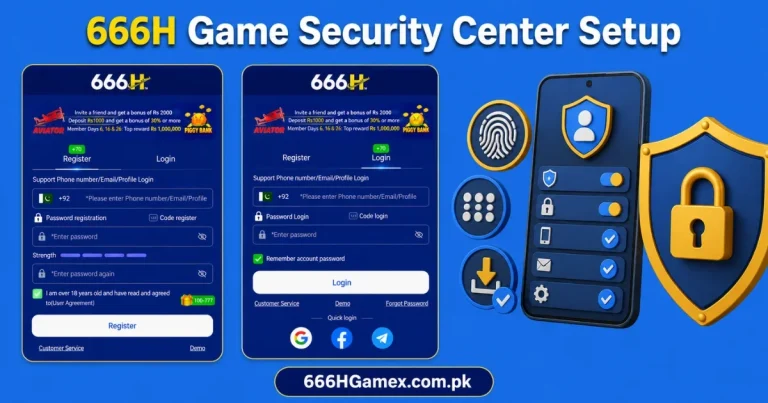
Where to Find the 666H Security Center
If any section shows a red or orange indicator, that part of your account isn’t fully protected yet. A fully green checklist means your Security Center is completely configured.
What’s Inside the Security Center — Section by Section
| Section | What It Controls | Priority |
| Login Password | Your main account password | Set at registration — update if weak |
| Withdrawal Password | Secondary code required for all fund withdrawals | Critical — set immediately |
| Mobile Number Verification | Confirms your registered number is active | Critical — required for OTP recovery |
| CNIC / Identity Verification | Confirms your identity for withdrawal eligibility | Critical — required before first withdrawal |
| Two-Factor Authentication | Extra login step using a code sent to your phone | High — enable if available |
| Login Device Management | Shows devices currently logged into your account | Medium — check periodically |
| Login Alerts | Notifies you by SMS when a new device logs in | Medium — enable if available |
| Payment Method Binding | Links your JazzCash/EasyPaisa to your account name | Critical — must match your CNIC name |
The Correct Setup Order — Do This First
Configuring the Security Center in the wrong order creates gaps. Here’s the sequence that closes every gap as you go:
Step 1 — Verify Your Mobile Number
This should already be done from registration since you need an OTP to sign up. Confirm it shows as Verified in the Security Center. This is the foundation everything else depends on — password resets, withdrawal password resets and login alerts all route through this number.
If it shows unverified for any reason, tap to resend the verification OTP and complete it now before moving to the next step.
Step 2 — Set Your Withdrawal Password
Go to the Withdrawal Password section. You’ll be asked to create a separate PIN or password — typically 6 digits — that’s different from your login password. This is what authorises every withdrawal request going forward.
Choose something you haven’t used anywhere else on the platform. Don’t reuse your login password or your JazzCash/EasyPaisa PIN. Write it down somewhere secure outside the phone if you’re worried about forgetting it — a withdrawal password reset requires identity verification and takes longer than resetting a login password.
Step 3 — Submit CNIC / Identity Verification
Go to the Identity Verification or CNIC section. Upload a clear photo of your CNIC — both sides if requested. This step is what unlocks withdrawal eligibility on your account.
Submit this on registration day, not when you have winnings ready to withdraw. Verification review typically completes within a few hours to a day. Submitting early means it’s already done by the time you need it.
Step 4 — Bind Your Payment Method
Go to the Payment Method or Bank Binding section. Link your JazzCash or EasyPaisa account. The name on this payment method must match your CNIC name and your 666H account name exactly.
If there’s any difference — even a missing middle name — future withdrawals will be flagged for manual review. Fix any mismatch now: either update your gaming account name to match your wallet, or resolve it through your mobile wallet provider first.
Step 5 — Enable Two-Factor Authentication (If Available)
If your app version includes 2FA, turn it on in the Security Center. This adds a second verification step at login — your password plus a code sent to your phone. An attacker with your password alone still can’t get in without your phone.
Step 6 — Turn On Login Alerts
If available, enable login alerts so you receive an SMS or notification whenever your account is accessed from a new device. This is your early warning system — if you get an alert for a login you didn’t make, you’ll know immediately and can act before any funds move.
Step 7 — Review Device Management
Check the Login Device Management section for a list of devices currently signed into your account. If you see a device you don’t recognise, remove it immediately and change your login password right after.
How to Confirm Your Security Center Is Fully Set Up
Before you consider your account properly secured, check every item on this list shows as complete:
- Mobile number: Shows Verified, not Pending
- Withdrawal password: Shows Set, different from your login password
- CNIC verification: Shows Approved or Under Review (not Not Submitted)
- Payment method: Bound, with a name that matches your CNIC exactly
- Two-factor authentication: Enabled, if the option is available in your app version
- Login alerts: Enabled, if available
- Device list: Reviewed — only devices you recognise are listed
A Security Center where every item is green means the platform will process your withdrawals without holds, your password can be recovered if forgotten, and you’ll be alerted immediately if anyone else tries to access your account.
What an Incomplete Security Center Costs You Later
Players who skip Security Center setup and go straight to depositing run into predictable problems weeks later:
Withdrawal held indefinitely: CNIC never submitted — the platform can’t verify identity to release funds
Withdrawal stuck in manual review: Payment method name doesn’t match CNIC — every transaction gets flagged
Locked out with no recovery option: Mobile number verification skipped — no way to receive a password reset OTP
Unnoticed unauthorised access: No login alerts enabled — a compromised account can be used for days before you notice
All four of these are avoided entirely by completing the Security Center in the first ten minutes after registration — before making a deposit, not after.
Updating Your Security Settings Later
Security Center settings aren’t locked in permanently — you can update most of them at any time from the same menu.
Changing Your Withdrawal Password
Go to the Withdrawal Password section and select Change or Reset. You’ll need to verify your identity — usually through an OTP to your registered number plus your current login password. Set a new one and confirm.
Updating Your Registered Mobile Number
If you’ve changed SIMs, go to the Mobile Number section and follow the update process. This typically requires verifying the old number one final time (if still accessible) or going through support with your CNIC if you’ve lost access entirely. Update this as soon as you change numbers — don’t wait until you need to recover your password.
Reviewing Device Access Periodically
Check the Device Management section every few weeks, especially if you play across multiple devices (phone, PC emulator). Remove any device you no longer use. A clean device list makes it immediately obvious if something unfamiliar appears.
Conclusion
The 666H Security Center takes about ten minutes to fully configure and prevents the vast majority of account and withdrawal problems Pakistani players run into. The order matters: verify your number first, set the withdrawal password second, submit CNIC third, bind your payment method fourth, then layer on 2FA and login alerts if available.
Do this before your first deposit, not after your first withdrawal request gets held. A fully green Security Center means faster withdrawals, easier account recovery and an early warning if anyone else ever tries to access your account.